> ## Documentation Index
> Fetch the complete documentation index at: https://docs.runpulse.com/llms.txt
> Use this file to discover all available pages before exploring further.
# Extract → Split → Schema
> Extract a document, divide it into topic-based sections, and apply different schemas to each section independently.
## Overview
The **Extract → Split → Schema** pipeline is the most powerful processing mode in Pulse. After extracting the document, it splits the pages into topic-based sections and then applies a **different schema** to each section. This is ideal for long, multi-section documents where different parts contain different kinds of data.
```mermaid theme={null}
flowchart LR
A[Upload document] --> B["/extract"]
B --> C[Markdown]
C --> D["/split"]
D --> E["Topic A (pp. 1-3)"]
D --> F["Topic B (pp. 4-7)"]
D --> G["Topic C (pp. 8-10)"]
E --> H["/schema — Schema A"]
F --> I["/schema — Schema B"]
G --> J["/schema — Schema C"]
```
***
## When to Use
* **Annual reports** — Financials, Leadership, and Outlook each have different data to extract
* **Multi-section contracts** — different clause types (indemnification, IP rights, payment terms) need different schemas
* **Research papers** — Abstract, Methodology, Results, and Conclusion each have distinct structure
* **Insurance documents** — policy details, claims history, and coverage schedules are all different
* **Regulatory filings** — mixed sections like company overview, financial statements, risk factors
If your entire document uses **one schema**, use [Extract → Schema](/platform-reference/extract-schema) instead — it's simpler and faster.
***
## How to Use in the Playground
### Configure extraction settings
Set page range, figure extraction, chunking, and other options on the **Configuration** tab — same as [Extract Only](/platform-reference/extract).
### Define split topics
Switch to the **Split** step. Add topics with names and descriptions — Pulse uses these to assign pages to topics based on document content.
| Topic | Description |
| ---------- | --------------------------------------- |
| Financials | Revenue, expenses, and profit data |
| Leadership | Executive team and board of directors |
| Outlook | Future plans, projections, and guidance |
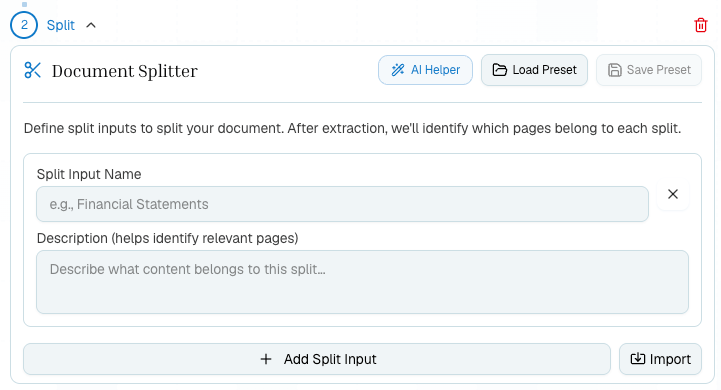 Use the **AI Helper** to draft split topics from a prompt, the attached document, or existing split inputs.
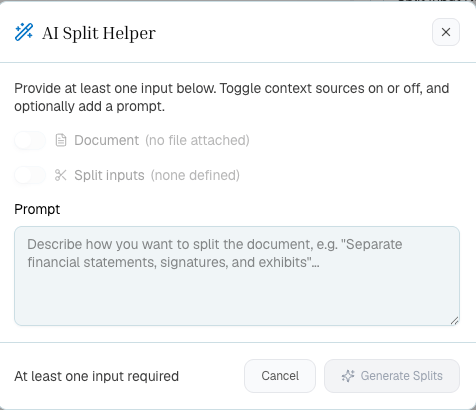 The split step assigns **whole pages** to topics. A page belongs to the topic that best matches its content. Pages can only belong to one topic.
### Define per-topic schemas
For each topic, define a JSON Schema tailored to the data you expect in that section. Each topic gets its own schema and optional prompt.
**Example — Financials schema:**
```json theme={null}
{
"type": "object",
"properties": {
"total_revenue": { "type": "number", "description": "Total revenue for the fiscal year" },
"net_income": { "type": "number", "description": "Net income after taxes" },
"revenue_growth_pct": { "type": "number", "description": "Year-over-year revenue growth %" }
},
"required": ["total_revenue"]
}
```
**Example — Leadership schema:**
```json theme={null}
{
"type": "object",
"properties": {
"ceo": { "type": "string", "description": "Name of the CEO" },
"board_members": {
"type": "array",
"items": { "type": "string" },
"description": "List of board member names"
}
}
}
```
The split step assigns **whole pages** to topics. A page belongs to the topic that best matches its content. Pages can only belong to one topic.
### Define per-topic schemas
For each topic, define a JSON Schema tailored to the data you expect in that section. Each topic gets its own schema and optional prompt.
**Example — Financials schema:**
```json theme={null}
{
"type": "object",
"properties": {
"total_revenue": { "type": "number", "description": "Total revenue for the fiscal year" },
"net_income": { "type": "number", "description": "Net income after taxes" },
"revenue_growth_pct": { "type": "number", "description": "Year-over-year revenue growth %" }
},
"required": ["total_revenue"]
}
```
**Example — Leadership schema:**
```json theme={null}
{
"type": "object",
"properties": {
"ceo": { "type": "string", "description": "Name of the CEO" },
"board_members": {
"type": "array",
"items": { "type": "string" },
"description": "List of board member names"
}
}
}
```
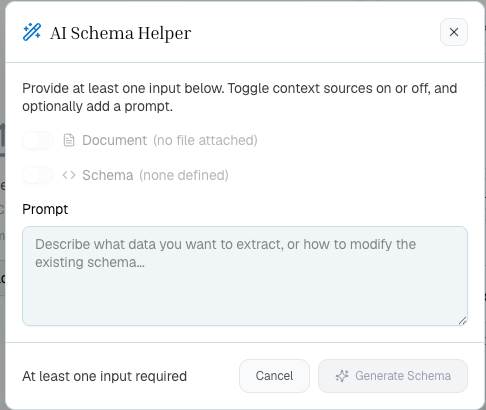
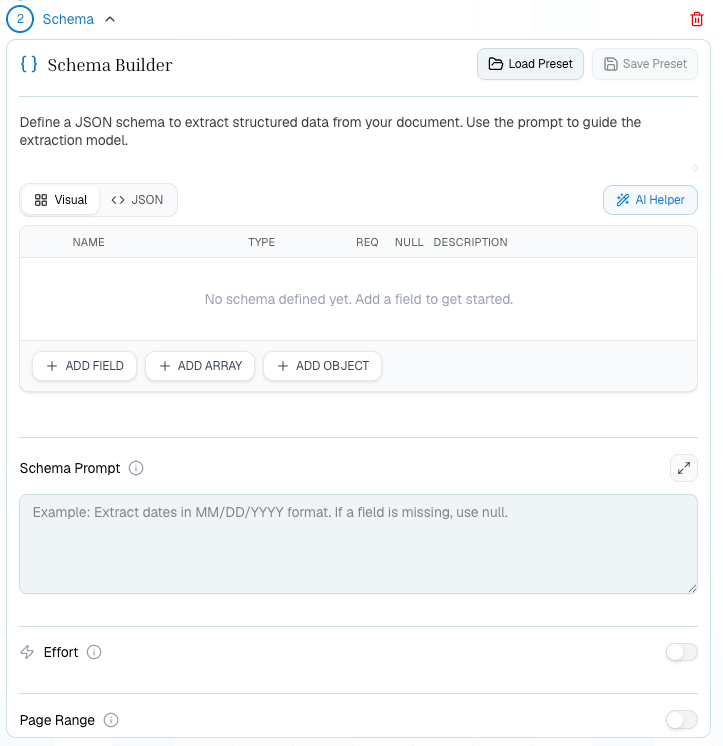 For each topic, use descriptions and prompts that match only that section. The Schema AI Helper can draft the first version, but you should still review field names and required fields before saving the preset.
 ### Upload and extract
Click **Extract All**. The pipeline chains all three steps automatically:
1. **Extract** — converts the document to markdown
2. **Split** — assigns pages to topics based on content
3. **Schema** — runs each topic's schema against its assigned pages
### Review results
Results appear organized by topic. Switch between topics to see:
* **Page assignments** — which pages belong to each topic
* **Structured output** — the JSON extracted for each topic
* **Citations** — where in the document each value was found
***
## What You Get Back
Everything from [Extract](/platform-reference/extract), plus:
| Field | Description |
| --------------------- | ------------------------------------------------------------------------ |
| `split_output.splits` | Page assignments — `{ "Financials": [1,2,3], "Leadership": [4,5] }` |
| `split_id` | Saved split result ID |
| `results` | Per-topic structured output with `values` and `citations` for each topic |
| `schema_id` | Saved schema result ID |
***
## API Usage
```python theme={null}
from pulse import Pulse
client = Pulse(api_key="YOUR_API_KEY")
# Step 1: Extract
extract_result = client.extract(
file=open("annual_report.pdf", "rb"),
async_=True,
storage={"enabled": True}
)
extraction_id = extract_result.extraction_id
# Step 2: Split
split_result = client.split(
extraction_id=extraction_id,
split_config={
"split_input": [
{"name": "Financials", "description": "Revenue, expenses, and profit data"},
{"name": "Leadership", "description": "Executive team and board members"},
{"name": "Outlook", "description": "Future plans and projections"}
]
}
)
split_id = split_result.split_id
print(f"Split: {split_result.split_output}")
# Step 3: Schema per topic
schema_result = client.schema(
split_id=split_id,
split_schema_config={
"Financials": {
"schema": {
"type": "object",
"properties": {
"total_revenue": {"type": "number"},
"net_income": {"type": "number"}
}
},
"schema_prompt": "Extract financial metrics"
},
"Leadership": {
"schema": {
"type": "object",
"properties": {
"ceo": {"type": "string"},
"board_members": {"type": "array", "items": {"type": "string"}}
}
},
"schema_prompt": "Extract leadership information"
},
"Outlook": {
"schema": {
"type": "object",
"properties": {
"guidance": {"type": "string"},
"growth_target": {"type": "number"}
}
},
"schema_prompt": "Extract forward-looking statements"
}
}
)
for topic, data in schema_result.results.items():
print(f"{topic}: {data}")
```
```typescript theme={null}
import { PulseClient } from "pulse-ts-sdk";
import fs from "fs";
const client = new PulseClient({
apiKey: "YOUR_API_KEY"
});
// Step 1: Extract (async)
const extractResult = await client.extract({
file: fs.createReadStream("annual_report.pdf"),
async: true,
storage: { enabled: true }
});
const extractionId = extractResult.extraction_id;
// Step 2: Split
const splitResult = await client.split({
extraction_id: extractionId,
split_config: {
split_input: [
{ name: "Financials", description: "Revenue, expenses, and profit data" },
{ name: "Leadership", description: "Executive team and board members" },
{ name: "Outlook", description: "Future plans and projections" }
]
}
});
const splitId = splitResult.split_id;
// Step 3: Schema per topic
const schemaResult = await client.schema({
split_id: splitId,
split_schema_config: {
Financials: {
schema: { type: "object", properties: { total_revenue: { type: "number" } } },
schema_prompt: "Extract financial metrics"
},
Leadership: {
schema: { type: "object", properties: { ceo: { type: "string" } } },
schema_prompt: "Extract leadership information"
},
Outlook: {
schema: { type: "object", properties: { guidance: { type: "string" } } },
schema_prompt: "Extract forward-looking statements"
}
}
});
console.log(schemaResult.results);
```
```bash theme={null}
# Step 1: Extract
curl -X POST https://api.runpulse.com/extract \
-H "x-api-key: YOUR_API_KEY" \
-F "file=@annual_report.pdf" \
-F "async=true" \
-F 'storage={"enabled": true}'
# Save extraction_id from response
# Step 2: Split
curl -X POST https://api.runpulse.com/split \
-H "x-api-key: YOUR_API_KEY" \
-H "Content-Type: application/json" \
-d '{
"extraction_id": "EXTRACTION_ID",
"split_config": {
"split_input": [
{"name": "Financials", "description": "Revenue, expenses, and profit data"},
{"name": "Leadership", "description": "Executive team and board members"},
{"name": "Outlook", "description": "Future plans and projections"}
]
}
}'
# Save split_id from response
# Step 3: Schema per topic
curl -X POST https://api.runpulse.com/schema \
-H "x-api-key: YOUR_API_KEY" \
-H "Content-Type: application/json" \
-d '{
"split_id": "SPLIT_ID",
"split_schema_config": {
"Financials": {
"schema": {"type": "object", "properties": {"total_revenue": {"type": "number"}}},
"schema_prompt": "Extract financial metrics"
},
"Leadership": {
"schema": {"type": "object", "properties": {"ceo": {"type": "string"}}},
"schema_prompt": "Extract leadership information"
}
}
}'
```
***
## Skipping Schema (Extract → Split Only)
You don't have to add schema after splitting. If you just want to know which pages belong to which topic — without structured extraction — you can stop after the split step. This is useful for document triage or routing.
```python theme={null}
# Extract → Split only (no schema)
split_result = client.split(
extraction_id=extraction_id,
split_config={
"split_input": [
{"name": "Relevant", "description": "Pages related to our query"},
{"name": "Not Relevant", "description": "Background or boilerplate pages"}
]
}
)
print(split_result.split_output)
# {"splits": {"Relevant": [1,3,5], "Not Relevant": [2,4,6]}}
```
***
## Related
Full API documentation for the `/split` endpoint
Full API documentation for the `/schema` endpoint (single and split mode)
### Upload and extract
Click **Extract All**. The pipeline chains all three steps automatically:
1. **Extract** — converts the document to markdown
2. **Split** — assigns pages to topics based on content
3. **Schema** — runs each topic's schema against its assigned pages
### Review results
Results appear organized by topic. Switch between topics to see:
* **Page assignments** — which pages belong to each topic
* **Structured output** — the JSON extracted for each topic
* **Citations** — where in the document each value was found
***
## What You Get Back
Everything from [Extract](/platform-reference/extract), plus:
| Field | Description |
| --------------------- | ------------------------------------------------------------------------ |
| `split_output.splits` | Page assignments — `{ "Financials": [1,2,3], "Leadership": [4,5] }` |
| `split_id` | Saved split result ID |
| `results` | Per-topic structured output with `values` and `citations` for each topic |
| `schema_id` | Saved schema result ID |
***
## API Usage
```python theme={null}
from pulse import Pulse
client = Pulse(api_key="YOUR_API_KEY")
# Step 1: Extract
extract_result = client.extract(
file=open("annual_report.pdf", "rb"),
async_=True,
storage={"enabled": True}
)
extraction_id = extract_result.extraction_id
# Step 2: Split
split_result = client.split(
extraction_id=extraction_id,
split_config={
"split_input": [
{"name": "Financials", "description": "Revenue, expenses, and profit data"},
{"name": "Leadership", "description": "Executive team and board members"},
{"name": "Outlook", "description": "Future plans and projections"}
]
}
)
split_id = split_result.split_id
print(f"Split: {split_result.split_output}")
# Step 3: Schema per topic
schema_result = client.schema(
split_id=split_id,
split_schema_config={
"Financials": {
"schema": {
"type": "object",
"properties": {
"total_revenue": {"type": "number"},
"net_income": {"type": "number"}
}
},
"schema_prompt": "Extract financial metrics"
},
"Leadership": {
"schema": {
"type": "object",
"properties": {
"ceo": {"type": "string"},
"board_members": {"type": "array", "items": {"type": "string"}}
}
},
"schema_prompt": "Extract leadership information"
},
"Outlook": {
"schema": {
"type": "object",
"properties": {
"guidance": {"type": "string"},
"growth_target": {"type": "number"}
}
},
"schema_prompt": "Extract forward-looking statements"
}
}
)
for topic, data in schema_result.results.items():
print(f"{topic}: {data}")
```
```typescript theme={null}
import { PulseClient } from "pulse-ts-sdk";
import fs from "fs";
const client = new PulseClient({
apiKey: "YOUR_API_KEY"
});
// Step 1: Extract (async)
const extractResult = await client.extract({
file: fs.createReadStream("annual_report.pdf"),
async: true,
storage: { enabled: true }
});
const extractionId = extractResult.extraction_id;
// Step 2: Split
const splitResult = await client.split({
extraction_id: extractionId,
split_config: {
split_input: [
{ name: "Financials", description: "Revenue, expenses, and profit data" },
{ name: "Leadership", description: "Executive team and board members" },
{ name: "Outlook", description: "Future plans and projections" }
]
}
});
const splitId = splitResult.split_id;
// Step 3: Schema per topic
const schemaResult = await client.schema({
split_id: splitId,
split_schema_config: {
Financials: {
schema: { type: "object", properties: { total_revenue: { type: "number" } } },
schema_prompt: "Extract financial metrics"
},
Leadership: {
schema: { type: "object", properties: { ceo: { type: "string" } } },
schema_prompt: "Extract leadership information"
},
Outlook: {
schema: { type: "object", properties: { guidance: { type: "string" } } },
schema_prompt: "Extract forward-looking statements"
}
}
});
console.log(schemaResult.results);
```
```bash theme={null}
# Step 1: Extract
curl -X POST https://api.runpulse.com/extract \
-H "x-api-key: YOUR_API_KEY" \
-F "file=@annual_report.pdf" \
-F "async=true" \
-F 'storage={"enabled": true}'
# Save extraction_id from response
# Step 2: Split
curl -X POST https://api.runpulse.com/split \
-H "x-api-key: YOUR_API_KEY" \
-H "Content-Type: application/json" \
-d '{
"extraction_id": "EXTRACTION_ID",
"split_config": {
"split_input": [
{"name": "Financials", "description": "Revenue, expenses, and profit data"},
{"name": "Leadership", "description": "Executive team and board members"},
{"name": "Outlook", "description": "Future plans and projections"}
]
}
}'
# Save split_id from response
# Step 3: Schema per topic
curl -X POST https://api.runpulse.com/schema \
-H "x-api-key: YOUR_API_KEY" \
-H "Content-Type: application/json" \
-d '{
"split_id": "SPLIT_ID",
"split_schema_config": {
"Financials": {
"schema": {"type": "object", "properties": {"total_revenue": {"type": "number"}}},
"schema_prompt": "Extract financial metrics"
},
"Leadership": {
"schema": {"type": "object", "properties": {"ceo": {"type": "string"}}},
"schema_prompt": "Extract leadership information"
}
}
}'
```
***
## Skipping Schema (Extract → Split Only)
You don't have to add schema after splitting. If you just want to know which pages belong to which topic — without structured extraction — you can stop after the split step. This is useful for document triage or routing.
```python theme={null}
# Extract → Split only (no schema)
split_result = client.split(
extraction_id=extraction_id,
split_config={
"split_input": [
{"name": "Relevant", "description": "Pages related to our query"},
{"name": "Not Relevant", "description": "Background or boilerplate pages"}
]
}
)
print(split_result.split_output)
# {"splits": {"Relevant": [1,3,5], "Not Relevant": [2,4,6]}}
```
***
## Related
Full API documentation for the `/split` endpoint
Full API documentation for the `/schema` endpoint (single and split mode)