> ## Documentation Index
> Fetch the complete documentation index at: https://docs.runpulse.com/llms.txt
> Use this file to discover all available pages before exploring further.
# Extract
> Convert any supported document to markdown, tables, and figures — the foundation of every Pulse pipeline.
## Overview
The **Extract** pipeline is the simplest and most common way to use Pulse. Upload a document and get back clean, layout-aware markdown along with extracted tables, figures, bounding boxes, and optional chunks.
This is the starting point for every other pipeline — [Extract → Schema](/platform-reference/extract-schema) and [Extract → Split → Schema](/platform-reference/extract-split-schema) both build on top of this step.
```mermaid theme={null}
flowchart LR
A[Upload document] --> B["/extract"]
B --> C[Markdown + Tables + Figures]
```
***
## When to Use
* **RAG ingestion** — feed clean markdown into a vector database
* **Search indexing** — convert documents to searchable text
* **Content migration** — pull content out of PDFs into your CMS
* **Table extraction** — grab structured tables from financial reports, invoices, or spreadsheets
* **General-purpose parsing** — convert any supported file type to machine-readable text
***
## Supported File Types
Pulse handles a wide range of document formats out of the box:
| Category | Extensions |
| ---------- | ----------------------------------------------------------- |
| **PDF** | `.pdf` — text-based, scanned/image-based, mixed, multi-page |
| **Images** | `.jpg`, `.jpeg`, `.png` — scans, photos, screenshots |
| **Office** | `.docx`, `.pptx`, `.xlsx` — Word, PowerPoint, Excel |
| **Web** | `.html`, `.htm` — saved web pages, HTML emails |
For the full breakdown including processing tips per format, see [Supported File Types](/api-reference/supported-file-types).
***
## How to Use in the Playground
### Upload your document
Drag and drop a file or paste a URL into the upload area. You can also upload multiple documents at once for batch processing.
### Configure extraction settings
Adjust settings on the **Configuration** tab before extracting:
| Setting | What it does |
| ----------------------------- | ---------------------------------------------------------------- |
| **Page range** | Process only specific pages (e.g. `1-5`, `3,7,12`) |
| **Extract figures** | Pull out embedded images and diagrams |
| **Figure descriptions** | Generate AI descriptions of extracted figures |
| **Show images** | Include inline images in the markdown output |
| **Return HTML** | Get HTML output in addition to markdown |
| **Effort mode** | Use more compute for higher accuracy on complex layouts |
| **Footnote references** | Link footnote markers to the text they explain |
| **Word-level bounding boxes** | Return word coordinates for review overlays and QA |
| **Spreadsheet settings** | Include hidden workbook content or trim phantom rows and columns |
| **Chunking** | Split output into semantic, header, page, or recursive chunks |
| **Chunk size** | Target token count per chunk |
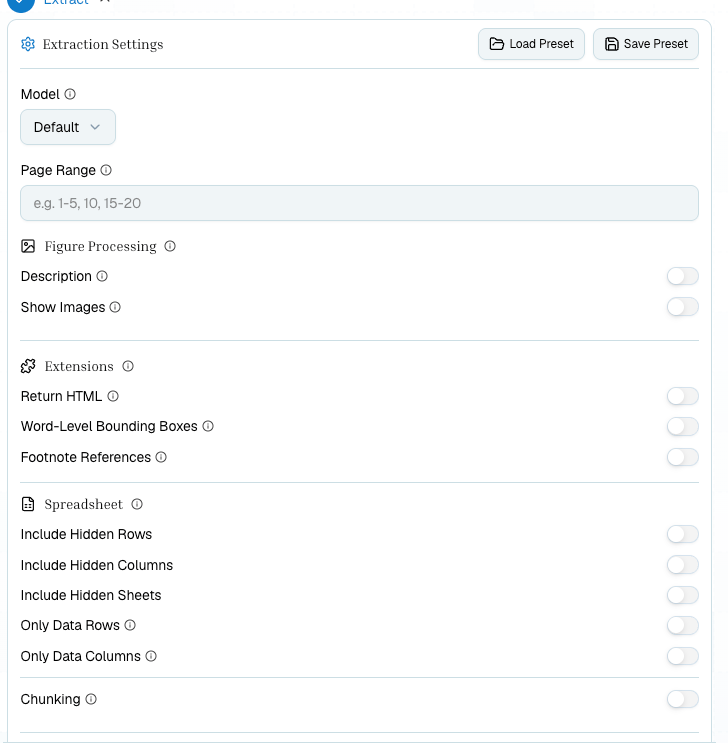 For guidance on when to enable footnotes, spreadsheet options, word-level boxes, or chunking, see [Processing Parameters](/concepts/processing-parameters).
### Click "Extract All"
The extraction runs (synchronously or asynchronously depending on document size). Progress is shown in the pipeline tabs.
### Review results
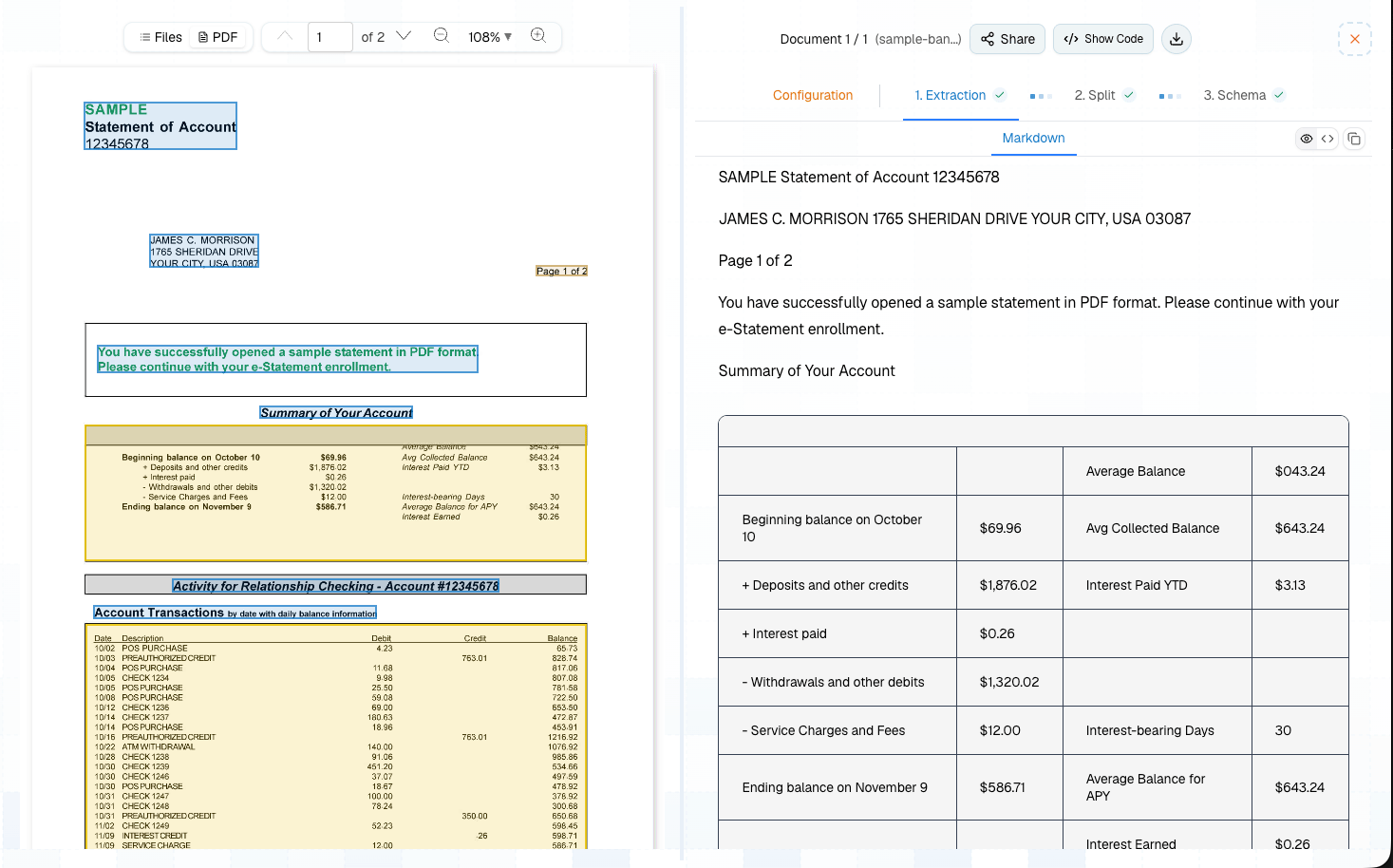
Results appear across several tabs:
* **Markdown** — Full document text with layout-aware formatting
* **Tables** — Detected tables rendered in a grid view
* **Bounding Boxes** — Visual overlay showing where each element was detected on the page
* **Chunks** — Chunked output (if chunking was enabled)
For guidance on when to enable footnotes, spreadsheet options, word-level boxes, or chunking, see [Processing Parameters](/concepts/processing-parameters).
### Click "Extract All"
The extraction runs (synchronously or asynchronously depending on document size). Progress is shown in the pipeline tabs.
### Review results
Results appear across several tabs:
* **Markdown** — Full document text with layout-aware formatting
* **Tables** — Detected tables rendered in a grid view
* **Bounding Boxes** — Visual overlay showing where each element was detected on the page
* **Chunks** — Chunked output (if chunking was enabled)
 ***
## What You Get Back
| Field | Description |
| ----------------------------- | ------------------------------------------------------------------------- |
| `markdown` | Full document text with layout-aware markdown formatting |
| `extensions.alt_outputs.html` | HTML output (if `extensions.alt_outputs.return_html` was enabled) |
| `extensions.chunking` | Chunk data (if `extensions.chunking` was configured) |
| `bounding_boxes` | Coordinates for every text block, table, and figure |
| `extraction_id` | Saved extraction ID — use this for subsequent `/split` or `/schema` calls |
| `extraction_url` | Presigned URL to the stored extraction result |
| `page_count` | Number of pages processed |
The `extraction_id` is the key to the rest of the Pulse pipeline. Once you have it, you can run [Schema](/platform-reference/extract-schema) or [Split](/platform-reference/extract-split-schema) on the same extraction without re-processing the document.
***
## API Usage
```python theme={null}
from pulse import Pulse
client = Pulse(api_key="YOUR_API_KEY")
# Synchronous extraction
result = client.extract(
file=open("invoice.pdf", "rb"),
storage={"enabled": True}
)
print(result.markdown)
print(f"Extraction ID: {result.extraction_id}")
```
```typescript theme={null}
import { PulseClient } from "pulse-ts-sdk";
import fs from "fs";
const client = new PulseClient({
apiKey: "YOUR_API_KEY"
});
const result = await client.extract({
file: fs.createReadStream("invoice.pdf"),
storage: { enabled: true }
});
console.log(result.markdown);
console.log("Extraction ID:", result.extraction_id);
```
```bash theme={null}
curl -X POST https://api.runpulse.com/extract \
-H "x-api-key: YOUR_API_KEY" \
-F "file=@invoice.pdf" \
-F 'storage={"enabled": true}'
```
For large documents, use async mode and poll for results:
```python theme={null}
# Async extraction
result = client.extract(
file=open("large_report.pdf", "rb"),
async_=True,
storage={"enabled": True}
)
job_id = result.job_id
# Poll GET /job/{job_id} until status is "completed"
```
See [Async Processing](/api-reference/async-processing) for the full polling flow.
***
## After Extraction
Once you have your `extraction_id`, you can:
Extract structured data fields with a JSON Schema
Divide into sections and extract per-section structured data
Extract structured tables with span detection and cross-page merging
***
## Related
Full API documentation for the `/extract` endpoint
Detailed breakdown of every supported format
***
## What You Get Back
| Field | Description |
| ----------------------------- | ------------------------------------------------------------------------- |
| `markdown` | Full document text with layout-aware markdown formatting |
| `extensions.alt_outputs.html` | HTML output (if `extensions.alt_outputs.return_html` was enabled) |
| `extensions.chunking` | Chunk data (if `extensions.chunking` was configured) |
| `bounding_boxes` | Coordinates for every text block, table, and figure |
| `extraction_id` | Saved extraction ID — use this for subsequent `/split` or `/schema` calls |
| `extraction_url` | Presigned URL to the stored extraction result |
| `page_count` | Number of pages processed |
The `extraction_id` is the key to the rest of the Pulse pipeline. Once you have it, you can run [Schema](/platform-reference/extract-schema) or [Split](/platform-reference/extract-split-schema) on the same extraction without re-processing the document.
***
## API Usage
```python theme={null}
from pulse import Pulse
client = Pulse(api_key="YOUR_API_KEY")
# Synchronous extraction
result = client.extract(
file=open("invoice.pdf", "rb"),
storage={"enabled": True}
)
print(result.markdown)
print(f"Extraction ID: {result.extraction_id}")
```
```typescript theme={null}
import { PulseClient } from "pulse-ts-sdk";
import fs from "fs";
const client = new PulseClient({
apiKey: "YOUR_API_KEY"
});
const result = await client.extract({
file: fs.createReadStream("invoice.pdf"),
storage: { enabled: true }
});
console.log(result.markdown);
console.log("Extraction ID:", result.extraction_id);
```
```bash theme={null}
curl -X POST https://api.runpulse.com/extract \
-H "x-api-key: YOUR_API_KEY" \
-F "file=@invoice.pdf" \
-F 'storage={"enabled": true}'
```
For large documents, use async mode and poll for results:
```python theme={null}
# Async extraction
result = client.extract(
file=open("large_report.pdf", "rb"),
async_=True,
storage={"enabled": True}
)
job_id = result.job_id
# Poll GET /job/{job_id} until status is "completed"
```
See [Async Processing](/api-reference/async-processing) for the full polling flow.
***
## After Extraction
Once you have your `extraction_id`, you can:
Extract structured data fields with a JSON Schema
Divide into sections and extract per-section structured data
Extract structured tables with span detection and cross-page merging
***
## Related
Full API documentation for the `/extract` endpoint
Detailed breakdown of every supported format