> ## Documentation Index
> Fetch the complete documentation index at: https://docs.runpulse.com/llms.txt
> Use this file to discover all available pages before exploring further.
# Extraction Library
> Browse, organize, and revisit all your saved extractions in a searchable, folder-based library.
## Overview
The **Extraction Library** is where all your saved extractions live. Every time you extract a document with `storage: { enabled: true }`, the result is saved to your organization's library. You can browse past extractions, organize them into folders, re-open results, run schema or split on them, and share them with team members.
***
## Accessing the Library
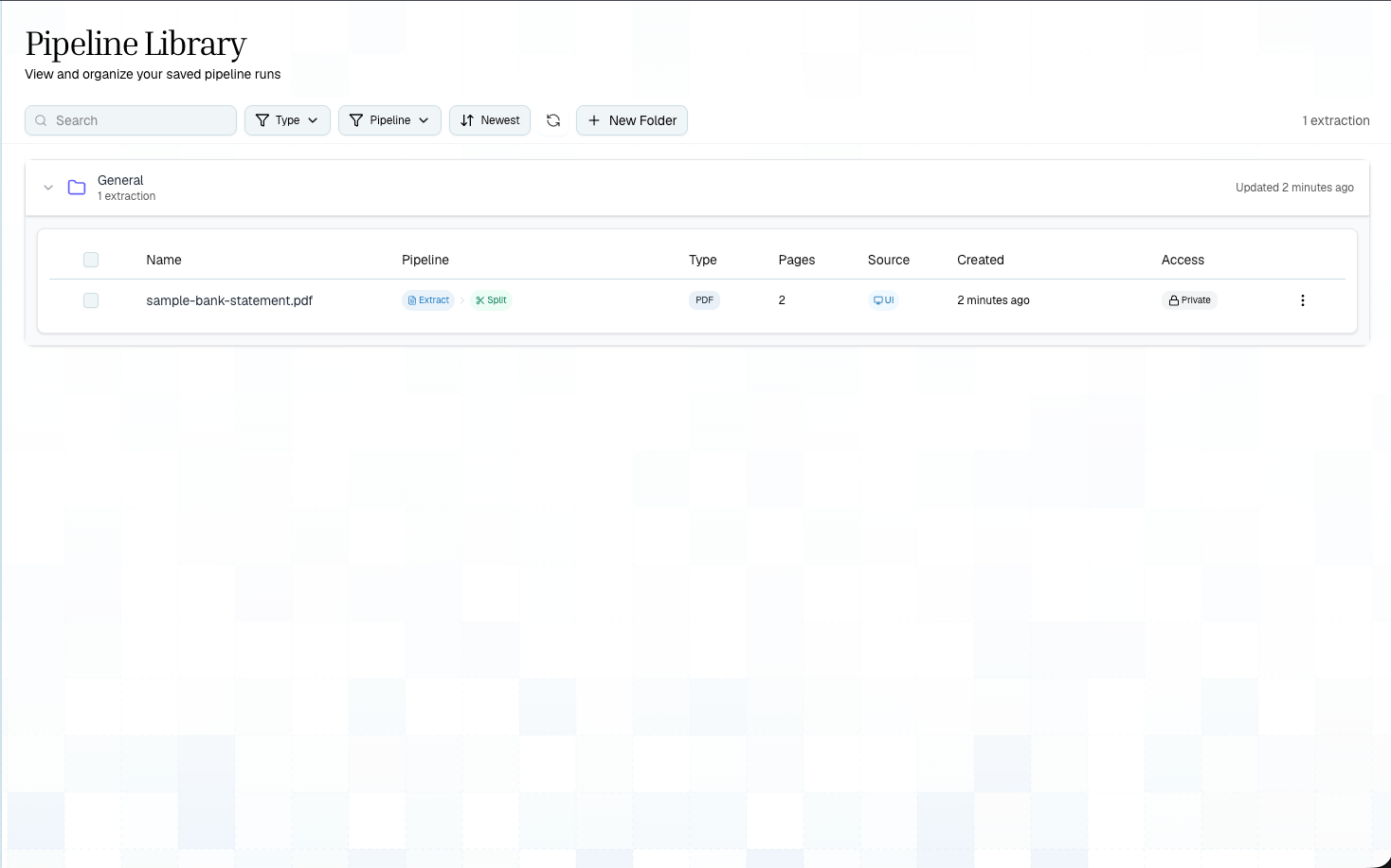
Navigate to **Extractions** in the Playground sidebar to open the library. You'll see:
* **Folders** — organize extractions into named folders
* **Extractions** — individual saved extractions with filename, file type, page count, and creation date
* **Schema count** — number of schema versions applied to each extraction
 ***
## Features
### Search and Filter
Use the search bar at the top to find extractions by filename. Results filter in real-time across all folders.
### Folders
Organize your extractions into folders for different projects, clients, or document types:
* **Create folders** — click the **New Folder** button
* **Drag and drop** — move extractions between folders by dragging
* **Expand/collapse** — click a folder to see its contents
* **Rename/delete** — right-click or use the menu on each folder
### Pagination
Large libraries are paginated automatically:
* **Folders** load in batches of 10, with a "Load More" button
* **Extractions within folders** load in batches of 50, with pagination controls
### Viewing an Extraction
Click any extraction to open it in the detail view. From there you can:
* **View markdown** — see the full extracted text
* **View tables** — browse detected tables
* **View bounding boxes** — see element locations overlaid on the original document
* **View schema** — see structured output (if schema was applied)
* **Run new schema** — apply a new or modified schema without re-extracting
* **Run split** — divide the extraction into topics
* **Re-extract** — process the document again with different settings
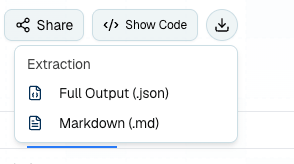
* **Download** — save extracted artifacts when you need to review or hand off results
***
## Features
### Search and Filter
Use the search bar at the top to find extractions by filename. Results filter in real-time across all folders.
### Folders
Organize your extractions into folders for different projects, clients, or document types:
* **Create folders** — click the **New Folder** button
* **Drag and drop** — move extractions between folders by dragging
* **Expand/collapse** — click a folder to see its contents
* **Rename/delete** — right-click or use the menu on each folder
### Pagination
Large libraries are paginated automatically:
* **Folders** load in batches of 10, with a "Load More" button
* **Extractions within folders** load in batches of 50, with pagination controls
### Viewing an Extraction
Click any extraction to open it in the detail view. From there you can:
* **View markdown** — see the full extracted text
* **View tables** — browse detected tables
* **View bounding boxes** — see element locations overlaid on the original document
* **View schema** — see structured output (if schema was applied)
* **Run new schema** — apply a new or modified schema without re-extracting
* **Run split** — divide the extraction into topics
* **Re-extract** — process the document again with different settings
* **Download** — save extracted artifacts when you need to review or hand off results
 ### Sharing
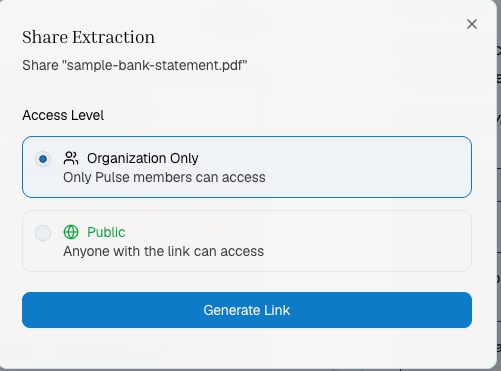
Share an extraction with a public link:
* Click the **Share** button on any extraction
* Toggle **public access** on/off
* Set an optional **expiration date**
* Copy the public URL to share with anyone — no API key required
### Sharing
Share an extraction with a public link:
* Click the **Share** button on any extraction
* Toggle **public access** on/off
* Set an optional **expiration date**
* Copy the public URL to share with anyone — no API key required
 ### Bulk Actions
Select multiple extractions using checkboxes for bulk operations:
* **Move to folder** — move selected extractions to a different folder
* **Delete** — remove selected extractions
***
## Schema Versioning
Each extraction can have multiple schema versions. When you apply a new schema (or re-run with a modified one), a new version is created — the previous version is preserved. In the extraction detail view:
* Switch between versions using the **version selector**
* Compare results across different schema configurations
* Roll back to a previous version if needed
See [Reruns](/platform-reference/reruns) for more on iterating with schemas.
***
## API: Listing Saved Extractions
You can also list and retrieve saved extractions programmatically:
```python theme={null}
import requests
response = requests.get(
"https://api.runpulse.com/api/v1/extractions",
headers={"x-api-key": "YOUR_API_KEY"},
params={"folders_limit": 10, "per_folder_limit": 50}
)
data = response.json()
for folder in data["folders_with_extractions"]:
print(f"Folder: {folder['name']}")
for extraction in folder["extractions"]:
print(f" - {extraction['filename']} ({extraction['page_count']} pages)")
```
***
## Storage Requirement
Extractions only appear in the library if `storage: { enabled: true }` was passed during extraction. Without storage, the extraction result is returned directly but not saved.
To ensure all extractions are saved, always include:
```python theme={null}
result = client.extract(
file=open("document.pdf", "rb"),
storage={"enabled": True}
)
```
Or in the Playground, storage is enabled by default.
***
## Related
Re-run schema, split, or extraction on saved documents
Save and reuse pipeline configurations
### Bulk Actions
Select multiple extractions using checkboxes for bulk operations:
* **Move to folder** — move selected extractions to a different folder
* **Delete** — remove selected extractions
***
## Schema Versioning
Each extraction can have multiple schema versions. When you apply a new schema (or re-run with a modified one), a new version is created — the previous version is preserved. In the extraction detail view:
* Switch between versions using the **version selector**
* Compare results across different schema configurations
* Roll back to a previous version if needed
See [Reruns](/platform-reference/reruns) for more on iterating with schemas.
***
## API: Listing Saved Extractions
You can also list and retrieve saved extractions programmatically:
```python theme={null}
import requests
response = requests.get(
"https://api.runpulse.com/api/v1/extractions",
headers={"x-api-key": "YOUR_API_KEY"},
params={"folders_limit": 10, "per_folder_limit": 50}
)
data = response.json()
for folder in data["folders_with_extractions"]:
print(f"Folder: {folder['name']}")
for extraction in folder["extractions"]:
print(f" - {extraction['filename']} ({extraction['page_count']} pages)")
```
***
## Storage Requirement
Extractions only appear in the library if `storage: { enabled: true }` was passed during extraction. Without storage, the extraction result is returned directly but not saved.
To ensure all extractions are saved, always include:
```python theme={null}
result = client.extract(
file=open("document.pdf", "rb"),
storage={"enabled": True}
)
```
Or in the Playground, storage is enabled by default.
***
## Related
Re-run schema, split, or extraction on saved documents
Save and reuse pipeline configurations