> ## Documentation Index
> Fetch the complete documentation index at: https://docs.runpulse.com/llms.txt
> Use this file to discover all available pages before exploring further.
# Step Preset Library
> Save, reuse, and share pipeline configurations — on the platform and via the API using config IDs.
## Overview
Once you've configured extraction settings, split topics, or a schema in the Playground, you can **save them as presets**. Presets let you:
* **Reuse** the same configuration across multiple documents
* **Share** standardized settings with your team
* **Reference** configurations by ID in API calls, keeping your code clean and your settings centralized
Each pipeline step has its own preset library:
| Step | Config ID field | What it stores |
| ------------ | ---------------------- | ---------------------------------------------------- |
| **Extract** | `extraction_config_id` | Page range, figures, chunking, effort, HTML settings |
| **Split** | `split_config_id` | Topic names and descriptions |
| **Schema** | `schema_config_id` | JSON Schema, schema prompt, effort mode |
| **Pipeline** | `pipeline_id` | All step types + config ID references |
***
## Saving a Preset in the Playground
### Configure your step
Set up your extraction settings, split topics, or schema as usual.
### Click "Save"
Click the **Save** button in the step's configuration panel.
### Name your preset
Give it a descriptive name (e.g., "Invoice Extract — Standard", "Annual Report Split Topics") and optional description.
### Confirm
The preset is saved to your organization's library. The config ID is now available for API use.
***
## Loading a Preset in the Playground
When starting a new extraction, click the **Load Preset** button (or select from the preset picker) to apply a saved configuration. All settings from the preset are loaded into the UI so you can use them as-is or tweak before running.
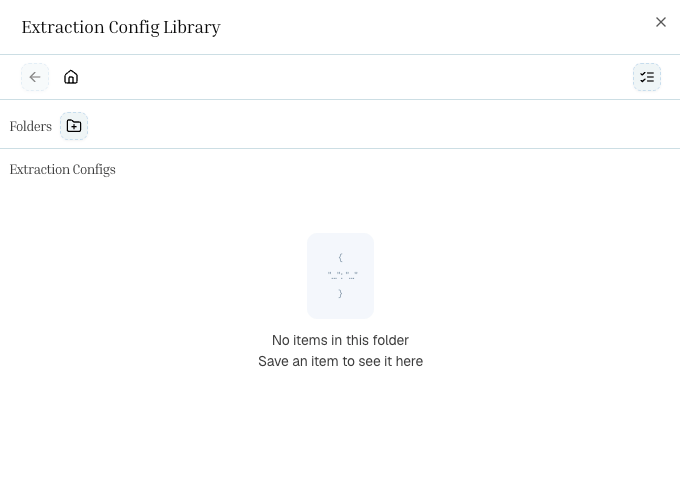
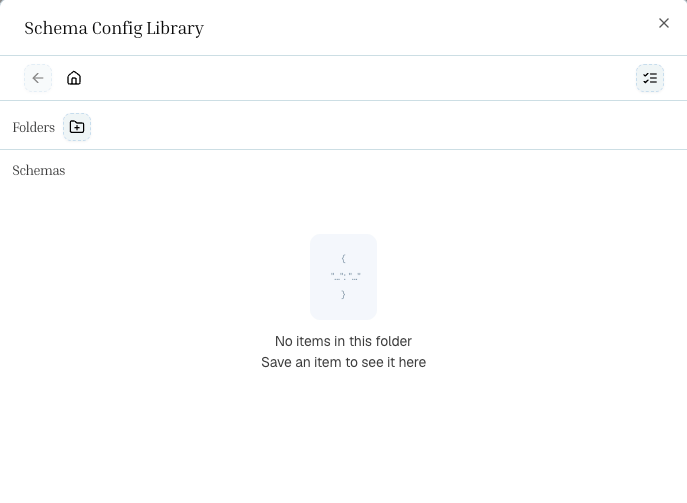
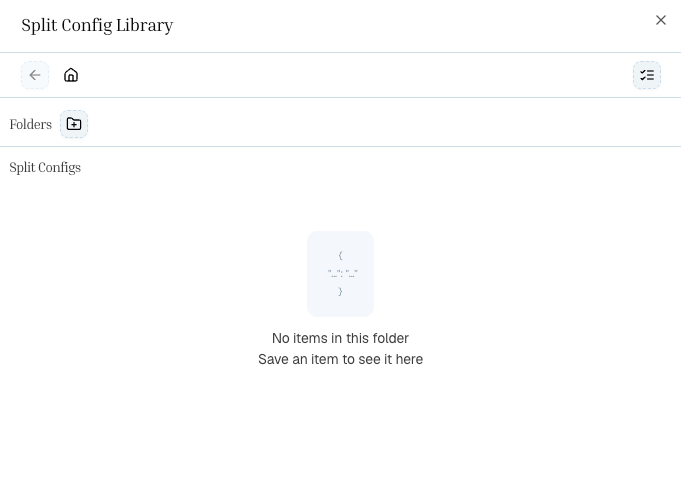
Each step type has its own config library, so Extract, Schema, and Split presets stay organized by what they control.
 ***
## Saving a Full Pipeline Preset
You can also save an entire pipeline — including all step configurations — as a single preset. When loading a pipeline preset, all steps (extract, split, schema) are restored together.
Pipeline presets store:
* **Step types** — which steps are included (extract, split, schema)
* **Config ID references** — pointers to each step's saved config
* For split-mode schemas, **per-topic schema config IDs**
***
## Using Config IDs in the API
The real power of presets is using them in API calls. Instead of inlining your full configuration in every request, pass the config ID and the backend resolves it.
### Extract with a Saved Config
```python theme={null}
from pulse import Pulse
client = Pulse(api_key="YOUR_API_KEY")
# Use a saved extraction config
result = client.extract(
file=open("document.pdf", "rb"),
extraction_config_id="abc123-your-saved-config-id",
storage={"enabled": True}
)
print(f"Extraction ID: {result.extraction_id}")
```
```typescript theme={null}
import { PulseClient } from "pulse-ts-sdk";
import fs from "fs";
const client = new PulseClient({
apiKey: "YOUR_API_KEY"
});
// Use a saved extraction config
const result = await client.extract({
file: fs.createReadStream("document.pdf"),
extractionConfigId: "abc123-your-saved-config-id",
storage: { enabled: true }
});
console.log("Extraction ID:", result.extraction_id);
```
```bash theme={null}
curl -X POST https://api.runpulse.com/extract \
-H "x-api-key: YOUR_API_KEY" \
-F "file=@document.pdf" \
-F "extraction_config_id=abc123-your-saved-config-id" \
-F 'storage={"enabled": true}'
```
### Extract → Split → Schema with Saved Configs
```python theme={null}
from pulse import Pulse
client = Pulse(api_key="YOUR_API_KEY")
# Step 1: Extract using saved extraction config
result = client.extract(
file=open("annual_report.pdf", "rb"),
extraction_config_id="ext-config-abc123",
async_=True,
storage={"enabled": True}
)
extraction_id = result.extraction_id
# Step 2: Split using saved split config
split_result = client.split(
extraction_id=extraction_id,
split_config_id="split-config-def456"
)
split_id = split_result.split_id
# Step 3: Schema using saved schema config (single mode)
schema_result = client.schema(
extraction_id=extraction_id,
schema_config_id="schema-config-ghi789"
)
print(schema_result.schema_output)
```
```typescript theme={null}
import { PulseClient } from "pulse-ts-sdk";
import fs from "fs";
const client = new PulseClient({
apiKey: "YOUR_API_KEY"
});
// Step 1: Extract using saved extraction config (async)
const result = await client.extract({
file: fs.createReadStream("annual_report.pdf"),
extractionConfigId: "ext-config-abc123",
async: true,
storage: { enabled: true }
});
const extractionId = result.extraction_id;
// Step 2: Split using saved split config
const splitResult = await client.split({
extraction_id: extractionId,
split_config_id: "split-config-def456"
});
// Step 3: Schema using saved schema config (single mode)
const schemaResult = await client.schema({
extraction_id: extractionId,
schema_config_id: "schema-config-ghi789"
});
console.log(schemaResult.schema_output);
```
```bash theme={null}
# Step 1: Extract using saved config
curl -X POST https://api.runpulse.com/extract \
-H "x-api-key: YOUR_API_KEY" \
-F "file=@annual_report.pdf" \
-F "extraction_config_id=ext-config-abc123" \
-F "async=true" \
-F 'storage={"enabled": true}'
# Save extraction_id
# Step 2: Split using saved config
curl -X POST https://api.runpulse.com/split \
-H "x-api-key: YOUR_API_KEY" \
-H "Content-Type: application/json" \
-d '{
"extraction_id": "EXTRACTION_ID",
"split_config_id": "split-config-def456"
}'
# Save split_id
# Step 3: Schema using saved config
curl -X POST https://api.runpulse.com/schema \
-H "x-api-key: YOUR_API_KEY" \
-H "Content-Type: application/json" \
-d '{
"extraction_id": "EXTRACTION_ID",
"schema_config_id": "schema-config-ghi789"
}'
```
***
## Inline vs. Config ID
You can mix and match — use a config ID for some steps and inline config for others:
```python theme={null}
# Inline extract settings + saved split config + inline schema
result = client.extract(
file=open("doc.pdf", "rb"),
async_=True,
storage={"enabled": True}
)
split_result = client.split(
extraction_id=result.extraction_id,
split_config_id="split-config-def456" # saved config
)
schema_result = client.schema(
split_id=split_result.split_id,
split_schema_config={ # inline config
"Financials": {
"schema": {"type": "object", "properties": {"revenue": {"type": "number"}}},
"schema_prompt": "Extract financial data"
}
}
)
```
When using a config ID, do **not** also pass inline config for the same step — the config ID takes precedence and the inline values are ignored.
***
## Benefits of Config IDs
| Benefit | Description |
| ---------------- | --------------------------------------------------------------------------- |
| **Consistency** | Everyone on your team uses the same validated settings |
| **Versioning** | Update a preset once and all future runs pick up the change |
| **Cleaner code** | API calls are shorter — no need to inline large schemas |
| **Portability** | Build and test in the Playground, then use the same config ID in production |
***
## Related
Overview of the three pipeline configurations
Take your Playground pipeline into production code
***
## Saving a Full Pipeline Preset
You can also save an entire pipeline — including all step configurations — as a single preset. When loading a pipeline preset, all steps (extract, split, schema) are restored together.
Pipeline presets store:
* **Step types** — which steps are included (extract, split, schema)
* **Config ID references** — pointers to each step's saved config
* For split-mode schemas, **per-topic schema config IDs**
***
## Using Config IDs in the API
The real power of presets is using them in API calls. Instead of inlining your full configuration in every request, pass the config ID and the backend resolves it.
### Extract with a Saved Config
```python theme={null}
from pulse import Pulse
client = Pulse(api_key="YOUR_API_KEY")
# Use a saved extraction config
result = client.extract(
file=open("document.pdf", "rb"),
extraction_config_id="abc123-your-saved-config-id",
storage={"enabled": True}
)
print(f"Extraction ID: {result.extraction_id}")
```
```typescript theme={null}
import { PulseClient } from "pulse-ts-sdk";
import fs from "fs";
const client = new PulseClient({
apiKey: "YOUR_API_KEY"
});
// Use a saved extraction config
const result = await client.extract({
file: fs.createReadStream("document.pdf"),
extractionConfigId: "abc123-your-saved-config-id",
storage: { enabled: true }
});
console.log("Extraction ID:", result.extraction_id);
```
```bash theme={null}
curl -X POST https://api.runpulse.com/extract \
-H "x-api-key: YOUR_API_KEY" \
-F "file=@document.pdf" \
-F "extraction_config_id=abc123-your-saved-config-id" \
-F 'storage={"enabled": true}'
```
### Extract → Split → Schema with Saved Configs
```python theme={null}
from pulse import Pulse
client = Pulse(api_key="YOUR_API_KEY")
# Step 1: Extract using saved extraction config
result = client.extract(
file=open("annual_report.pdf", "rb"),
extraction_config_id="ext-config-abc123",
async_=True,
storage={"enabled": True}
)
extraction_id = result.extraction_id
# Step 2: Split using saved split config
split_result = client.split(
extraction_id=extraction_id,
split_config_id="split-config-def456"
)
split_id = split_result.split_id
# Step 3: Schema using saved schema config (single mode)
schema_result = client.schema(
extraction_id=extraction_id,
schema_config_id="schema-config-ghi789"
)
print(schema_result.schema_output)
```
```typescript theme={null}
import { PulseClient } from "pulse-ts-sdk";
import fs from "fs";
const client = new PulseClient({
apiKey: "YOUR_API_KEY"
});
// Step 1: Extract using saved extraction config (async)
const result = await client.extract({
file: fs.createReadStream("annual_report.pdf"),
extractionConfigId: "ext-config-abc123",
async: true,
storage: { enabled: true }
});
const extractionId = result.extraction_id;
// Step 2: Split using saved split config
const splitResult = await client.split({
extraction_id: extractionId,
split_config_id: "split-config-def456"
});
// Step 3: Schema using saved schema config (single mode)
const schemaResult = await client.schema({
extraction_id: extractionId,
schema_config_id: "schema-config-ghi789"
});
console.log(schemaResult.schema_output);
```
```bash theme={null}
# Step 1: Extract using saved config
curl -X POST https://api.runpulse.com/extract \
-H "x-api-key: YOUR_API_KEY" \
-F "file=@annual_report.pdf" \
-F "extraction_config_id=ext-config-abc123" \
-F "async=true" \
-F 'storage={"enabled": true}'
# Save extraction_id
# Step 2: Split using saved config
curl -X POST https://api.runpulse.com/split \
-H "x-api-key: YOUR_API_KEY" \
-H "Content-Type: application/json" \
-d '{
"extraction_id": "EXTRACTION_ID",
"split_config_id": "split-config-def456"
}'
# Save split_id
# Step 3: Schema using saved config
curl -X POST https://api.runpulse.com/schema \
-H "x-api-key: YOUR_API_KEY" \
-H "Content-Type: application/json" \
-d '{
"extraction_id": "EXTRACTION_ID",
"schema_config_id": "schema-config-ghi789"
}'
```
***
## Inline vs. Config ID
You can mix and match — use a config ID for some steps and inline config for others:
```python theme={null}
# Inline extract settings + saved split config + inline schema
result = client.extract(
file=open("doc.pdf", "rb"),
async_=True,
storage={"enabled": True}
)
split_result = client.split(
extraction_id=result.extraction_id,
split_config_id="split-config-def456" # saved config
)
schema_result = client.schema(
split_id=split_result.split_id,
split_schema_config={ # inline config
"Financials": {
"schema": {"type": "object", "properties": {"revenue": {"type": "number"}}},
"schema_prompt": "Extract financial data"
}
}
)
```
When using a config ID, do **not** also pass inline config for the same step — the config ID takes precedence and the inline values are ignored.
***
## Benefits of Config IDs
| Benefit | Description |
| ---------------- | --------------------------------------------------------------------------- |
| **Consistency** | Everyone on your team uses the same validated settings |
| **Versioning** | Update a preset once and all future runs pick up the change |
| **Cleaner code** | API calls are shorter — no need to inline large schemas |
| **Portability** | Build and test in the Playground, then use the same config ID in production |
***
## Related
Overview of the three pipeline configurations
Take your Playground pipeline into production code