
Overview
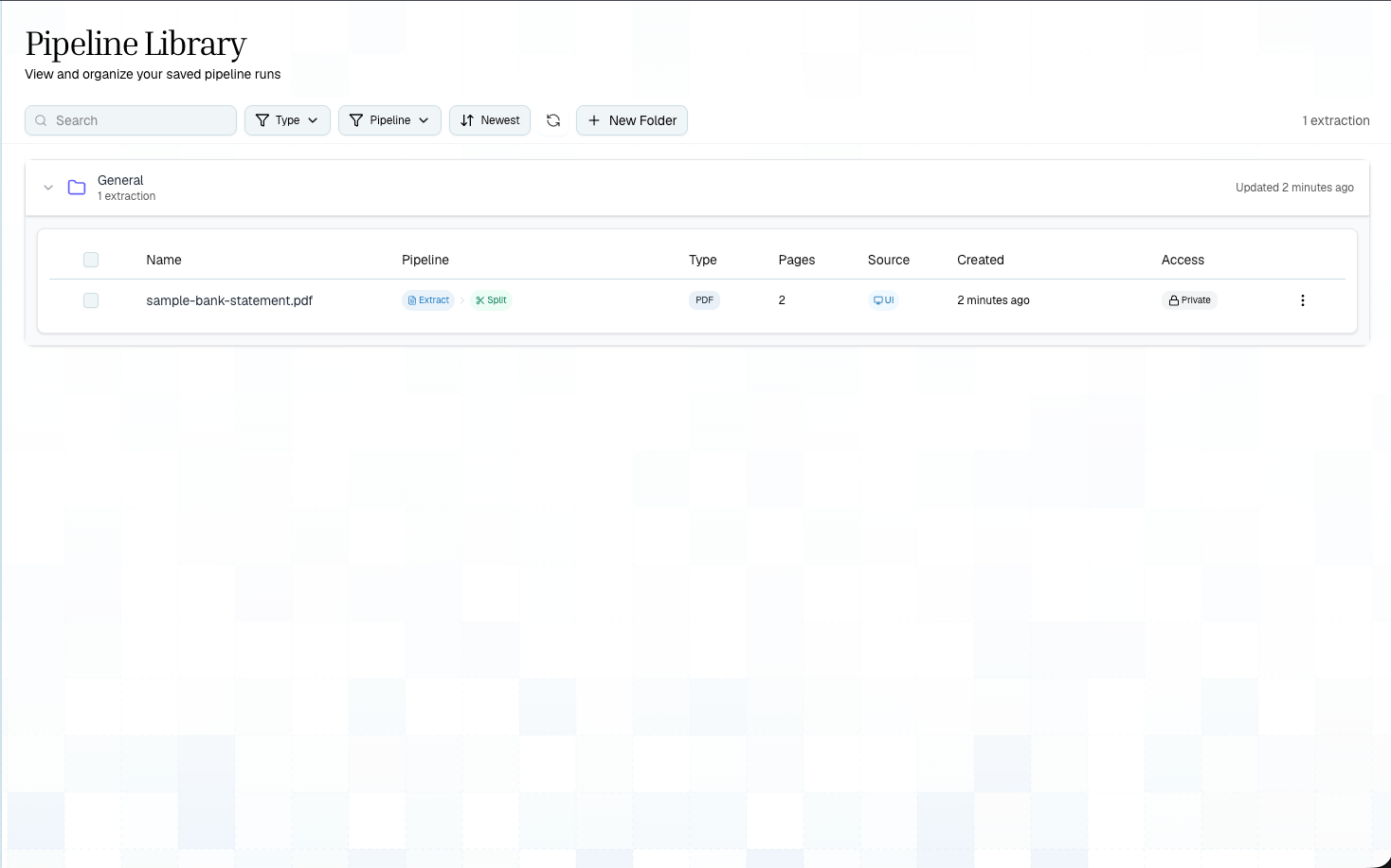
The Extraction Library is where all your saved extractions live. Every time you extract a document withstorage: { enabled: true }, the result is saved to your organization’s library. You can browse past extractions, organize them into folders, re-open results, run schema or split on them, and share them with team members.
Accessing the Library
Navigate to Extractions in the Playground sidebar to open the library. You’ll see:- Folders — organize extractions into named folders
- Extractions — individual saved extractions with filename, file type, page count, and creation date
- Schema count — number of schema versions applied to each extraction
Features
Search and Filter
Use the search bar at the top to find extractions by filename. Results filter in real-time across all folders.Folders
Organize your extractions into folders for different projects, clients, or document types:- Create folders — click the New Folder button
- Drag and drop — move extractions between folders by dragging
- Expand/collapse — click a folder to see its contents
- Rename/delete — right-click or use the menu on each folder
Pagination
Large libraries are paginated automatically:- Folders load in batches of 10, with a “Load More” button
- Extractions within folders load in batches of 50, with pagination controls
Viewing an Extraction
Click any extraction to open it in the detail view. From there you can:- View markdown — see the full extracted text
- View tables — browse detected tables
- View bounding boxes — see element locations overlaid on the original document
- View schema — see structured output (if schema was applied)
- Run new schema — apply a new or modified schema without re-extracting
- Run split — divide the extraction into topics
- Re-extract — process the document again with different settings
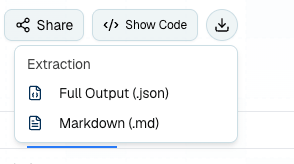
- Download — save extracted artifacts when you need to review or hand off results
Sharing
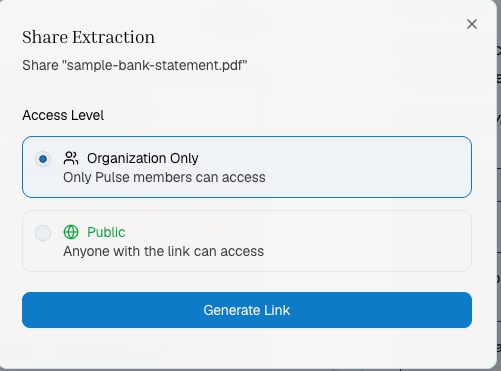
Share an extraction with a public link:- Click the Share button on any extraction
- Toggle public access on/off
- Set an optional expiration date
- Copy the public URL to share with anyone — no API key required
Bulk Actions
Select multiple extractions using checkboxes for bulk operations:- Move to folder — move selected extractions to a different folder
- Delete — remove selected extractions
Schema Versioning
Each extraction can have multiple schema versions. When you apply a new schema (or re-run with a modified one), a new version is created — the previous version is preserved. In the extraction detail view:- Switch between versions using the version selector
- Compare results across different schema configurations
- Roll back to a previous version if needed
API: Listing Saved Extractions
You can also list and retrieve saved extractions programmatically:Storage Requirement
To ensure all extractions are saved, always include:Related
Reruns
Re-run schema, split, or extraction on saved documents
Step Preset Library
Save and reuse pipeline configurations