
Create a key
1
Open API Keys
Sign in at platform.runpulse.com and open API Keys.
2
Create the key
Click Create API Key, give the key a name, and click Create Key.
3
Store it
Copy the key and keep it in a secret manager or an environment variable, such as
PULSE_API_KEY.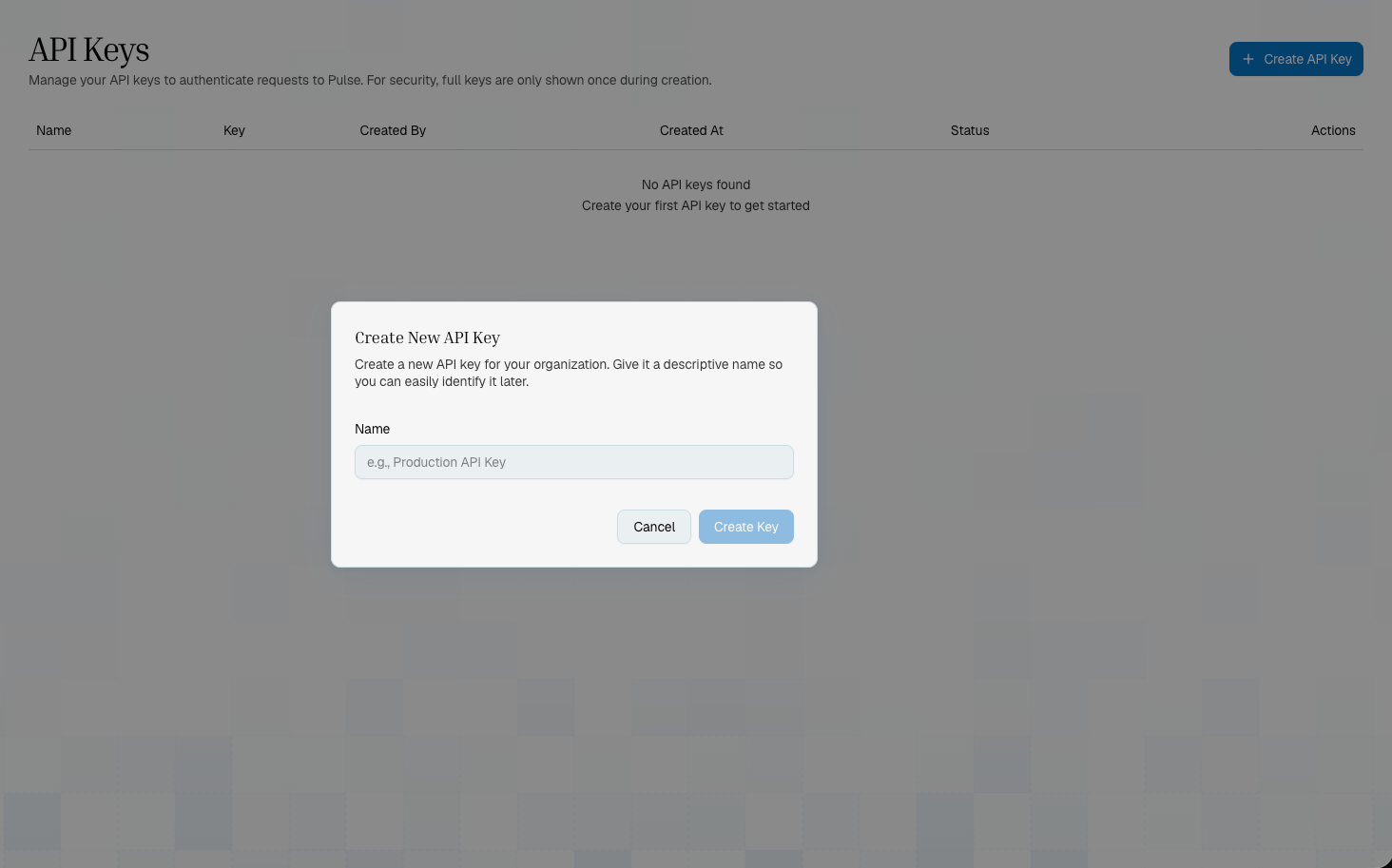
Send the key and the version
On every request, send your API key in thex-api-key header (or as Authorization: Bearer <key>) and the Pulse-Version: 2 header.
To check that a key works, read your organization’s usage:
Without Pulse-Version
A request without the header gets your organization’s default API version. Organizations start with version 1 as their default, and on version 1 a version 2 route such as POST /parse returns 404. Moving from V1 has the full rules, including the few requests that don’t follow the default, and shows how to change it.
What a key can do
Any key of the organization can start jobs and read any job’s status and result. It can also create, change and delete saved configs and webhooks, and read usage and organization settings. Two actions need a particular key:- Only a key of the user who started a job can cancel it.
- Only a key whose creator is an organization admin can change organization settings (
PATCH /settings/org).
401, and so does a key whose creator was deleted. A key whose creator is suspended gets 403.
Keep keys safe
- Call Pulse from your server, never from browser or mobile code.
- Never commit keys to source control.
- Use a separate key for each environment, such as development, staging and production.
- To rotate a key, create a new one, deploy it, and then delete the old one in the dashboard.