
parse_id, so a document is parsed once however many steps read it.
Parse a document
This request parses a sample bank statement from a URL, waits for the parse to finish, and prints the start of its Markdown:model is the only option you must send, and ultra-2 is its only value. For a long document, send async: true and poll the job instead, as Jobs and results shows. To upload a file, and for size limits, see Files and limits.
Steps work from the parse’s result, not the document. Set the options a later step depends on, such as
page_range or a tables refine pass, on the parse itself.Choose options
Every option sits inconfig; Run Parse lists them all. If a refine pass, a figure description, footnotes, metadata or chunks can’t be finished, the parse still completes and its warnings say what was skipped.
This request parses the first 10 pages of an annual report with several options on:
prompt adds your instructions to Pulse’s own, such as the units the document’s numbers are in. It doesn’t change the result’s shape.
Choose pages
page_range picks the pages to parse, such as "1-3, 6, 8-end", counting from 1, with end for the last page. If you leave it out, every page is parsed. Only the pages you parse are billed. For a PDF, an image or a workbook, a range past the last page is refused with a 400 before any work starts.
The result numbers pages within your selection: with "page_range": "5-7", the document’s page 5 is page: 1. A later step’s page_range uses these numbers, not the document’s.
Improve the parse
These options sit underenhancements.
Correct tables, text and layout
refine.modes lists passes that check the parse against the page images and correct it. Each mode can appear once:
Each mode except
layout takes its own prompt; sending one with layout is refused. This config refines tables with an instruction and checks the layout:
REFINE_SKIPPED.
Describe figures
figures.describe: ["all"] adds a description, written by a model, to every Figure element, such as a chart, diagram or photo. figures.include: true returns each figure’s image, base64-encoded, in its figure_base64.
A figure that can’t be described comes back without a description, or with its caption or Image in place of one, and the result’s warnings say so. For the numbers behind a chart, use Charts.
Detect checkboxes
detect: ["selections"] finds checkboxes, radio buttons and similar marks, and adds selected: true to each ticked one.
Read spreadsheets
spreadsheet applies to workbooks: .xlsx, .xlsm, .xls, .xlsb and .csv files.
Each sheet is a page, hidden sheets included, and a
page_range of only hidden sheets is refused unless you also ask for hidden sheets. A workbook is billed by the filled cells the result shows: see Pricing.
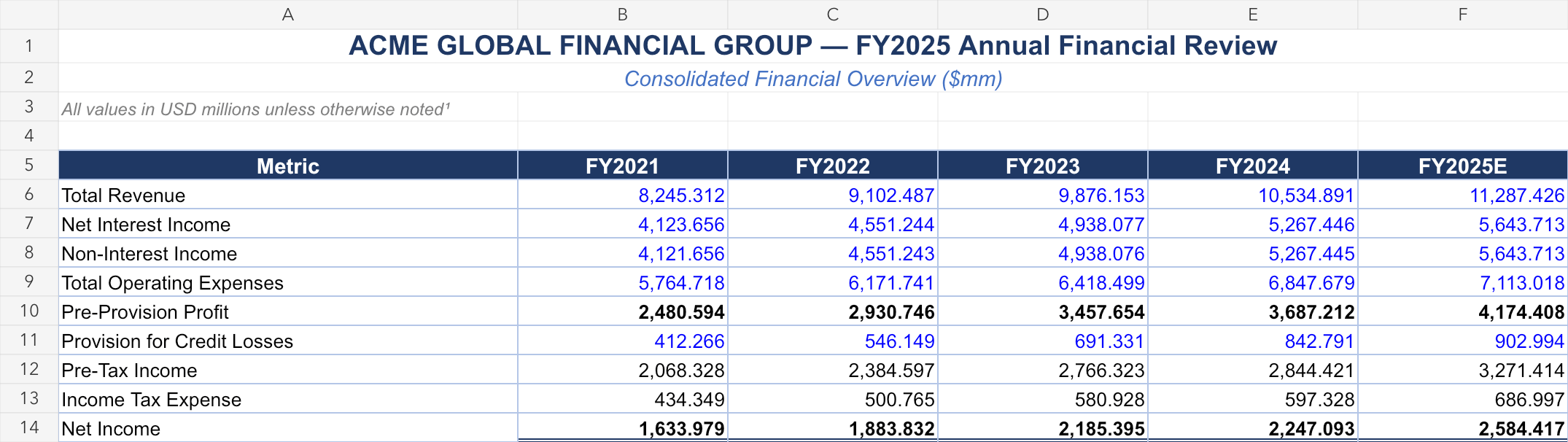
The workbook's first sheet, Executive Summary.

Another sheet of the same workbook, with quarterly profit and loss lines.
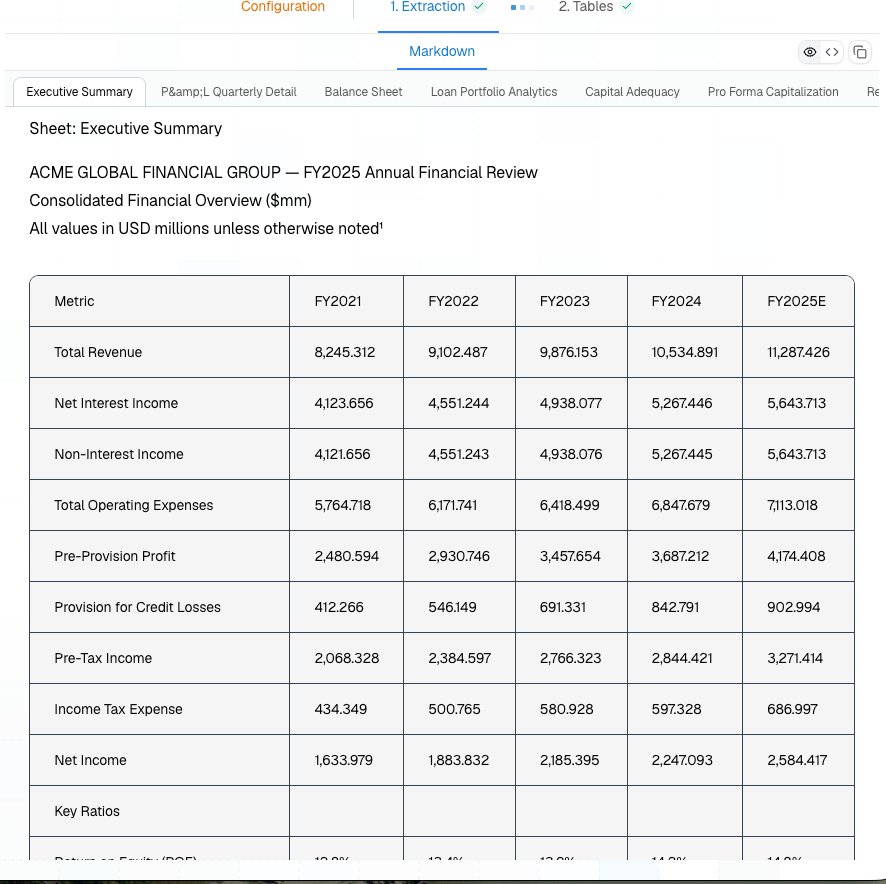
The parsed workbook in the dashboard: one tab per sheet, each sheet's tables as Markdown.
.xlsx and .xlsm workbooks, a cell also carries its formula and comment when it has them.
Add outputs
These options sit underextensions, and each output comes back under its option’s name in the result’s extensions.
Link footnotes
footnotes: true finds the document’s footnotes and links each one to the elements whose text cites it.

A paper in the dashboard, with each footnote found and listed beside the page.
symbol and text, the footnote_element_id of the element holding it, and the reference_element_ids of the elements citing it. Each id is an element’s id, or a table cell’s id when the note or the text citing it is in a table.

Each footnote, opened to show the passages that cite it.
Chunk text for retrieval
chunking splits the text into chunks. The semantic strategy cuts where the meaning shifts, so each chunk holds one idea. max_characters, from 20 to 100,000, cuts any longer chunk again. If you leave it out, chunks have no length cap. This request chunks a paper into pieces of at most 2,000 characters:
CHUNKS_SKIPPED. RAG ingestion shows how to choose max_characters and store chunks.
Get word-level boxes
word_level_bounding_boxes: true returns every word as a Word element with its own bbox, and makes results much larger. Your organization must have word boxes enabled; otherwise the request is refused with a 400. Elements and bounding boxes shows how to draw them.
Get other formats
additional_formats returns the document as html (the Markdown as HTML), xml (the elements, grouped by page) or tagged_md (the Markdown with each element’s id written in, to map text back to elements).
Read the file’s metadata
document_metadata: true returns what the file stores about itself, such as its title, authors and creation date. Metadata is what the file claims, not checked fact, and it can name people, so treat it as sensitive. If part of it can’t be read, the result warns METADATA_INCOMPLETE.
Keep or discard the result
By default, a parse is saved: its result is kept with no expiry and appears in your organization’s dashboard.storage.folder_id saves it into one of your dashboard folders; copy a folder’s ID from its menu in the dashboard.
To keep a result only briefly, send "storage": {"save": false}. The result is then kept for 24 hours from when Pulse accepts the request, until its expires_at. You can’t combine save: false with a folder_id, and free plans can’t send save: false. Your organization’s settings take precedence: see Retention.
The result
GET /parse/{parse_id}/result (client.parse.get_result) returns a completed parse’s result:
A saved result for the sample bank statement looks like this, shortened:
failed_pages then lists them, each is marked in markdown with an HTML comment, and the result warns PAGES_FAILED. Treat a missing or empty failed_pages as every page parsed. Pages that failed aren’t billed.
Next steps
Elements and bounding boxes
Map Markdown and citations to elements.
Extract
Fill a JSON Schema with values from a parse.
Saved configs
Reuse a parse config by its
config_id.Parse API reference
Every option, field and limit.